- CompressConvertAI PDF
- Organize
- View & Edit
- Convert from PDF
- Convert to PDF
- SignMoreScan
Convert PPT to JPG Online
Need to convert PPT to JPG online? Use a fast, free tool to turn PowerPoint slides into JPGs with no signup or software installation required.
Convert slides to JPG: Click “Choose file” above to upload your PPT/PPTX, then export every slide as a downloadable JPG image.
Upload your PPT or PPTX file to Smallpdf's free converter, select “Export As” then “Image (.jpg),” and download your slides as individual JPG images. The entire process takes seconds and works directly in your browser.
JPGs are easy to open, quick to load, and compatible with almost any device or platform.
This guide shows you how to convert PPT files to JPGs online, quickly, and without the need for additional software.
How to Convert PowerPoint (PPT/PPTX) to JPG Online for Free
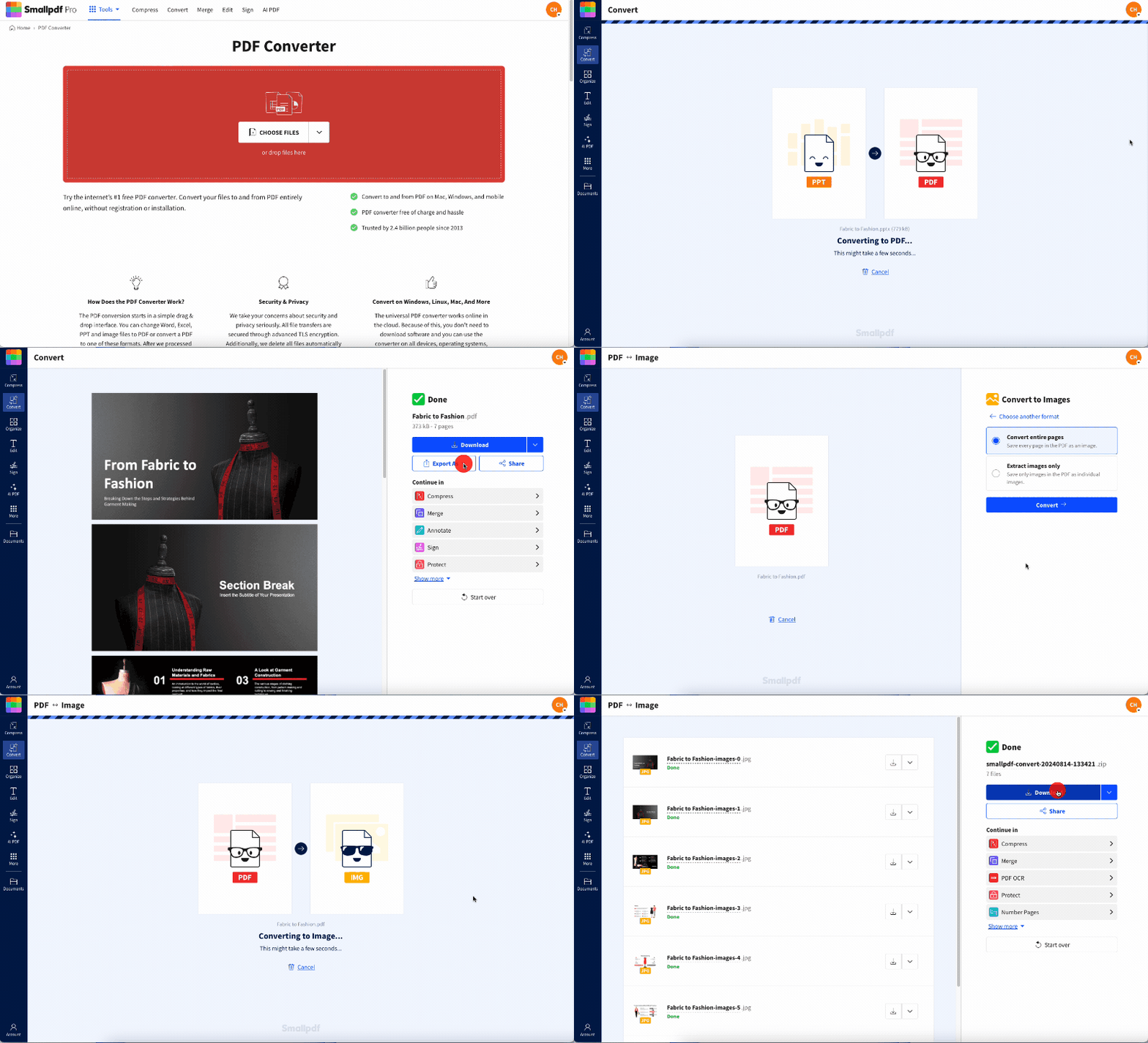
How to Save Slides as JPG in Microsoft PowerPoint
If you prefer using PowerPoint directly, you can export slides to JPG format without any online tools. Here’s how:
Export Every Slide vs Current Slide
Open your PowerPoint presentation.
Click File in the menu bar.
Select Export.
Click on File Format
Select JPEG from the list of available image formats.
Choose to save every slide or only the current one.
Click Export.
Save Slides with Notes (Workaround)
PowerPoint doesn't directly export notes with slides as JPG. To include notes, first switch to Notes view, take a screenshot, or copy the slide and notes into a Word document, then save that as JPG.
Why Convert PowerPoint Slides to JPG Images
Converting your PowerPoint to JPG offers several practical benefits:
Smaller file sizes: JPG images are typically smaller than PNG or TIF files, making them ideal for sharing via email or uploading online.
Universal compatibility: You can open JPG images on almost any operating system or device without special software.
Fast loading: Smaller file sizes mean quicker upload and download times, especially useful for social media sharing.
Content protection: Converting to JPG prevents others from editing your original slide content.
Web-friendly format: JPG is optimized for web use and displays consistently across browsers and platforms.
JPG vs PDF for PowerPoint—When to Use Each
Both JPG and PDF are great options for sharing PowerPoint content, but they serve different purposes:
Choose JPG when you need:
Individual slide images for social media or websites
Smaller file sizes for email attachments
Images that work across all devices and platforms
Content that will be embedded in other documents
Choose PDF when you need:
To preserve exact slide layout and formatting
A single document containing all slides
Password protection capabilities
Professional document sharing that maintains text quality
You can also consider PNG as an alternative image format if you need higher quality or transparency support, though file sizes will be larger.
To convert to PDF instead, simply download the PowerPoint as a PDF using our converter. If you'd like to protect the content, use our Protect PDF tool to add encrypted password protection.
Quality and Resolution Tips for Clearer JPG Exports
Getting the best quality from your PowerPoint to JPG conversion requires attention to a few key factors:
High-Resolution Export Options
Optimal DPI settings: For web use, 72-96 DPI works well. For print or high-quality viewing, use 150-300 DPI.
Image dimensions: Larger source slides generally produce clearer JPG exports.
Format alternatives: Consider PNG or TIFF for higher quality if file size isn't a concern.
Font and Text Clarity (Embedding Fonts)
Embed fonts: In PowerPoint, go to File > Options > Save and check “Embed fonts in the file.”
Use standard fonts: Arial, Helvetica, and Times New Roman convert most reliably.
Avoid thin fonts: Bold or medium-weight fonts maintain better readability in JPG format.
About Smallpdf's PPT to JPG Converter
Our converter is designed to make PowerPoint to JPG conversion simple and secure for everyone.
Security & Privacy
Files are protected with TLS encryption during upload and processing.
All files are automatically deleted from our servers after one hour.
No email signup required for basic conversions.
Limits & Batch Processing
You can convert files for free, but this is limited to a certain number of times per day. Batch processing is also available with a Smallpdf Pro subscription.
Supported Formats & Platforms
All you have to do is upload, convert, and download your document. Plus, PowerPoint isn't the only Microsoft Office format Smallpdf supports.
You can convert almost all Microsoft Office documents to and from PDF. Take a look at our guide on converting PPT to Word to learn more about Smallpdf's capabilities.
Start Your Free Trial to Access All Smallpdf Tools
If you're not sure whether a Pro subscription is right for you, try a 7-day free trial the first time you sign up. This gives you enough time to explore our full suite of tools, designed to make working with PDFs easy.
PowerPoint to JPG FAQs
How do I convert PowerPoint to JPG?
Upload your PPT or PPTX file to Smallpdf's converter, select “Export As” > “Image (.jpg),” and download your converted slides.Can I convert PPTX to JPG for free?
Yes, Smallpdf offers free PowerPoint to JPG conversion with a daily usage limit.Does PowerPoint support exporting to JPG?
Yes, PowerPoint has built-in JPG export through File > Export > Change File Type > JPEG.What's the best PPT to JPG converter?
Look for converters that work in your browser, don't require software installation, and prioritize file security like Smallpdf.Why does the text in my converted JPG look different from the PowerPoint presentation?
Text that doesn’t convert properly is often the result of missing or unsupported fonts in the PPT file. Try embedding the fonts in your PowerPoint file before converting. Alternatively, you can use universally supported fonts like Arial, Helvetica, or Times New Roman.Make PPT-to-JPG converting quicker with Pro