- CompressConvertAI PDF
- Organize
- View & Edit
- Convert from PDF
- Convert to PDF
- SignMoreScan
Convert PPT to Word Online
Convert PowerPoint slides into editable Word handouts in minutes. Use Smallpdf online or PowerPoint’s built-in export, with formatting tips and fixes.
Convert PPT to Word: Click “Choose file” above to upload your PowerPoint, then export it as a Word document you can edit.
You can convert a PPT to Word online fast, keep your layout readable, and get a DOCX you can edit without installing anything.
If you need a Word version of your slides, you usually want one of two outcomes: An editable DOCX you can rewrite, or a clean handout layout you can share.
We’ll cover both, starting with the quickest Smallpdf workflow, then the built-in PowerPoint method for handouts.
Quick Steps: Convert PPT to Word Online
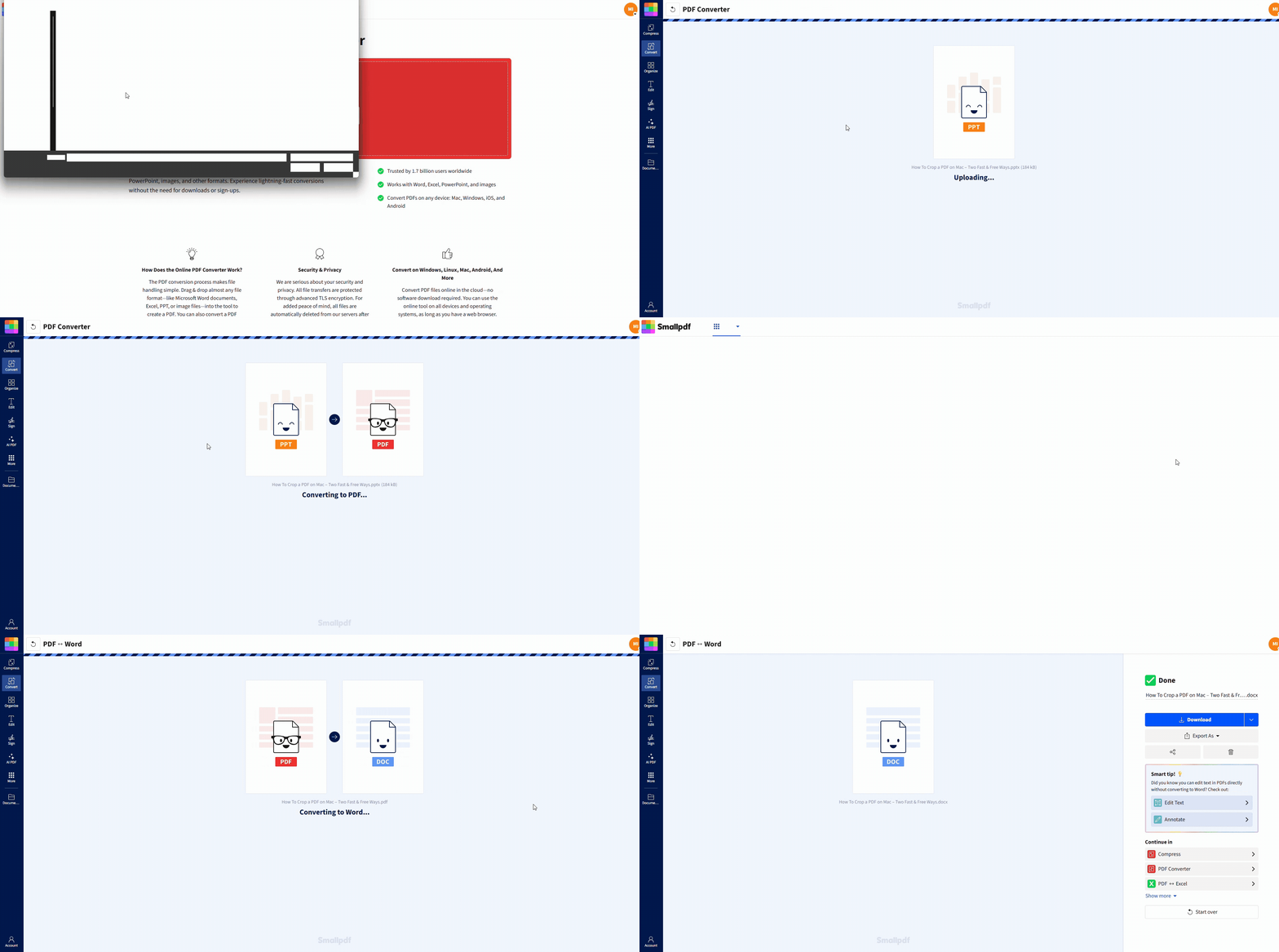
How To Convert PPT to Word Online in Four Steps
Smallpdf converts your PowerPoint to PDF first, then exports that PDF to Word. That two-step flow is why it works reliably across devices and doesn’t depend on your PowerPoint version.
Step 1: Upload Your PowerPoint File
Open Smallpdf PDF Converter and upload your PPT or PPTX.
Drag and drop the file into the page, or click “Choose Files.”
You can also import from Google Drive, Dropbox, or OneDrive.
Step 2: Let the File Convert to PDF
Once the upload finishes, the conversion runs automatically. You’ll land on a results page with export options.
Step 3: Export the PDF as Word
Click “Export As” > “Word (.docx).”
Step 4: Choose the Right Conversion Option and Download
Pick the option that matches your file:
If your PDF contains normal, selectable text, choose “Convert selectable text only.”
If your slides were scanned or image-based, you may need OCR to extract text accurately. OCR is a Pro feature, so this step may require a trial.
Then click “Convert,” and download your DOCX.
Pick the Right Word Output for Your Goal
Before you convert, decide what you want the Word file to do.
You want editable content. You plan to rewrite headings, reuse slide text, or rebuild the doc into a report. The Smallpdf workflow usually fits best.
You want handouts. You want slides with lines for notes, speaker notes below, or an outline layout. PowerPoint’s handout export gives you more control.
If your priority is to make it editable, start with Smallpdf. If your priority is to make it presentable as a handout, use PowerPoint’s built-in export.
Convert PowerPoint to Word in Microsoft PowerPoint
PowerPoint can send slides into Word as handouts. This is great for training packs, meeting notes, and print-ready documents.
Create Handouts in Word on Windows
Open your presentation in PowerPoint.
Go to “File” > “Export.”
Select “Create Handouts” > “Create Handouts.”
Choose a layout like “Notes beside slides,” “Notes below slides,” or “Outline only.”
Choose “Paste” or “Paste link.”
Click “OK” to open the handout in Word.
Paste vs. Paste Link
Paste creates a static handout. It won’t update if the slides change.
Paste link keeps a connection to the PowerPoint file. If you update the deck, Word can refresh the linked content. This file is usually heavier.
Export from PowerPoint on Mac
PowerPoint for Mac commonly exports to formats Word can open, but the exact path depends on your version.
A practical approach is to export to a text-friendly format first, then open it in Word:
Go to “File” > “Export” (or “File” > “Save As”).
Choose “Rich Text Format (.rtf)” if it’s available.
Save the file, then open it in Word and adjust formatting.
RTF exports can drop visual elements and may not preserve slide layouts well. Use this mainly when you need text out of slides quickly.
Smallpdf vs. PowerPoint: Which Method Should You Use?
| Feature | Smallpdf Online Conversion | PowerPoint “Create Handouts” |
|---|---|---|
| Works without PowerPoint installed | Yes | No |
| Best for editable DOCX | Yes | Mixed (handout-focused) |
| Best for handout layouts | Good | Excellent |
| Cross-device support | Works in most browsers | Depends on installed version |
| Handles quick conversions | Yes | Yes |
| Handles scans with OCR option | Yes (Pro feature) | Limited |
If you need a quick, editable DOCX from anywhere, Smallpdf wins on speed and flexibility. If you need slide thumbnails with structured notes space, PowerPoint handouts win on layout control.
What Transfers From PPT to Word and What Doesn’t
Here’s what most conversions keep, and what usually gets dropped.
| Usually Transfers | Usually Doesn’t Transfer |
|---|---|
| Slide text | Animations |
| Static images | Transitions |
| Basic formatting | Embedded video playback |
| Slide order | Interactive elements |
| Speaker notes (handouts) | Audio |
Expect to do a quick review after conversion, especially for complex layouts or heavy visuals.
Tips To Keep Formatting Clean After Conversion
Small formatting shifts happen when slides turn into a document. These steps reduce cleanup time.
Use common fonts in your deck. Custom fonts often get replaced.
Keep text boxes aligned and avoid stacking too many layers.
If images matter, export slides at high quality before converting.
For handouts, choose “Notes beside slides” for the best slide-to-text balance.
After conversion, scan the Word doc for spacing, bullet indentation, and image placement.
If the DOCX looks cramped, add spacing in Word using “Layout” > “Spacing” and adjust heading styles once, then apply them consistently.
Convert Scanned Slides or Image-Based Decks to Editable Text
If your slides are actually images, screenshots, or scanned pages, a standard export won’t extract real text. That’s where OCR helps.
Open the converted PDF and try selecting text. If you can’t highlight words, the content is image-based.
Here’s a reliable workflow:
Convert the PPT to PDF using PDF Converter.
Run OCR on the PDF to create selectable text (this may require a Pro trial).
Export the OCR result to Word using PDF to Word.
OCR works best on clean, high-contrast text. If your slide photos are blurry or tilted, straighten and re-scan if you can before running OCR.
Fix Common PPT to Word Conversion Problems
1. The DOCX Layout Looks Broken
This usually comes from a complex slide design.
Simplify the slide layout first if you can.
Try exporting to PDF, then converting that PDF to Word.
In Word, reset styles using “Home” > “Styles” and reapply headings.
2. Fonts Changed After Conversion
This happens when Word can’t find the original font.
Replace with a close match in Word.
Use Word’s built-in fonts for future decks if you know you’ll convert often.
3. The File Is Too Large To Convert or Download
Large decks usually mean large images.
Reduce size first with Compress PDF after the PPT becomes a PDF.
Split the PDF using Split PDF, convert sections, then merge Word docs if needed.
4. Speaker Notes Are Missing
If you need notes, use PowerPoint handout export:
Go to “File” > “Export” > “Create Handouts.”
Choose “Notes below slides” or “Notes beside slides.”
Where This Helps in Real Work
Here are common situations where PPT to Word saves time:
Meeting follow-ups: Turn a deck into a DOCX, add decisions, and send one clean recap.
Training handouts: Export handouts with space for notes, then print or share.
Report writing: Pull slide text into Word and expand it into a full document, without retyping.
These workflows work best when you start from a clean deck and pick the output type you actually need.
Convert PPT to Word Online and Keep Moving
If you need an editable DOCX quickly, start with Smallpdf and export your PPT to Word in a few clicks. If you need structured handouts with notes, use PowerPoint’s built-in handout export and pick the layout that matches your audience.
Convert PPT to Word Frequently Asked Questions
Can I convert a PPT to Word online for free?
Yes. You can convert PPT to Word online using Smallpdf. Some advanced options, like OCR for scans, may require a trial.How do I convert PPT to DOCX with Smallpdf?
Upload your PPT to Smallpdf PDF Converter, then click “Export As” > “Word (.docx)” and download the result.How do I convert a PowerPoint to an outline in Word?
In PowerPoint on Windows, go to “File” > “Export” > “Create Handouts,” then choose “Outline only.”How do I include speaker notes in Word?
Use PowerPoint’s handout export and select “Notes below slides” or “Notes beside slides.”Why does my Word file look different than my slides?
Word and PowerPoint handle layout differently. Slides are canvas-based, while Word is flow-based. Expect minor spacing shifts, especially with layered designs.Is Smallpdf safe for confidential presentations?
Smallpdf protects file transfers with TLS encryption and deletes files automatically after processing. If you’re handling sensitive material, avoid sharing links and download your file directly.Turn slide content into Word text in seconds using Pro