- CompressConvertAI PDF
- Organize
- View & Edit
- Convert from PDF
- Convert to PDF
- SignMoreScan
How To Save a Google Doc as a PDF
Need to save a Google Doc as a PDF? It only takes a few clicks. PDFs preserve layouts, fonts, and formatting—making them easy to share or print.
Convert your Google Doc: Click “Choose file” above to upload your document from your device or cloud storage, then save it as a clean PDF.
Saving a Google Doc as a PDF and converting a Google Doc to PDF are the same thing. You’re taking a Docs file and exporting a PDF copy that keeps your page layout stable for sharing, printing, and signing.
You’ll usually do this for one of three reasons. You need a file that looks the same on every device, you want a clean print-ready version, or you’re sending a final copy to someone who should not edit your work.
Below, we’ll walk you through the fastest desktop methods, the mobile steps, and the best workaround when you need to batch convert multiple Google Docs to PDF.
Quick Steps: Convert a Google Doc to PDF
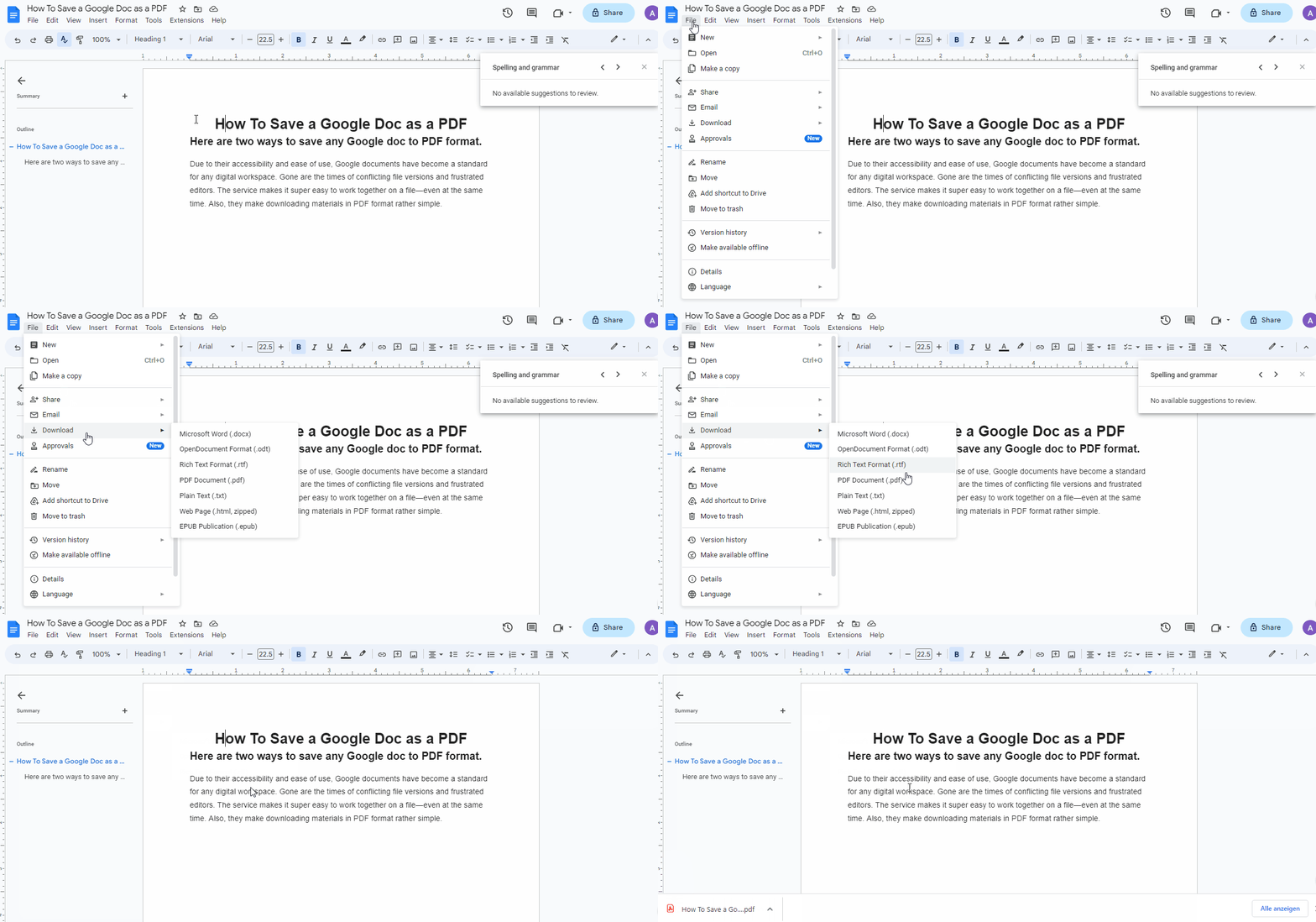
Method 1: Download as PDF in Google Docs
This is the simplest way to save a Google Doc as a PDF on desktop. It’s fast, and it usually preserves your formatting well.
Step-By-Step on Desktop
Open the document in Google Docs.
Click “File.”
Click “Download.”
Select “PDF Document (.pdf).”
Open the downloaded PDF to confirm spacing, headings, and page breaks.
Use “Download” when you want a clean PDF quickly, and you don’t need to tweak printer-style settings like margins, paper size, or page orientation.
Method 2: Print and Save as PDF
The print route still converts your Google Doc to PDF, but it gives you extra control. It’s a great fix when the PDF export looks slightly off.
Step-By-Step on Desktop
Open your document in Google Docs.
Click “File” > “Print” (or use your system print shortcut).
In the print window, choose “Save as PDF.”
Adjust settings like pages, layout, margins, and destination.
Click “Save” to download your PDF.
If your downloaded PDF shows odd spacing or image softness, the print process often produces a more predictable output. It also helps when you want to confirm pagination before you export.
Convert a Google Doc to PDF on Mobile
If you’re converting a Google Doc to PDF on iPhone or Android, you’ll do it from the Google Docs app. The menu labels can vary slightly by device and app version, but the flow is consistent.
Step-By-Step on iPhone and Android
Open the Google Docs app and open your document.
Tap the three-dot menu.
Tap “Share & export.”
Tap “Send a copy” (or “Save as”).
Choose “PDF” to export the file.
If you’re exporting for sharing, save the PDF to your Files app first. Then share from Files. That avoids re-exporting the PDF if you need to send it again.
Batch Convert Multiple Google Docs to PDF
Google Docs does not offer a true batch export inside Docs itself. If you’re working with a folder of documents, the clean workaround is to download them as Word files, then convert them in one go.
Bulk Download From Google Drive, Then Convert
Step 1. Download multiple docs as Word files
Open Google Drive in your browser.
Select multiple Google Docs files in a folder.
Download them as Word files (Drive will package them for download).

Step 2. Convert the DOCX files to PDFs with Smallpdf
Open Smallpdf Word to PDF.
Upload the DOCX files and convert them.
Download your PDFs.
Smallpdf Word to PDF supports converting multiple documents at the same time, which is the fastest way to batch convert a set of Google Docs exports.
Troubleshooting: Google Doc to PDF Issues
Exporting is usually smooth, but a few common issues pop up. Here’s how to fix them without reformatting your whole doc.
1. Formatting Shifted in the PDF
If headings jump, tables break, or spacing changes:
Try the “Print” > “Save as PDF” method first.
If that still looks wrong, download as DOCX and convert with Smallpdf Word to PDF. This often preserves complex layout better than a direct export.
2. Images Look Blurry
Export using “Print” > “Save as PDF” instead of “Download.”
Make sure images in the Doc are not low-resolution originals.
3. The PDF Option Is Missing or Export Fails
Refresh the tab and try again.
Try another browser profile or an incognito window.
If you’re on a work account, ask IT if downloads are restricted.
4. You Need an Editable Version Again
If someone sends the PDF back with feedback, you may want to edit the text, not just annotate it.
OCR, explained simply: OCR (Optical Character Recognition) turns a scanned image of text into selectable, editable text.
If your PDF is a scan, use Smallpdf PDF to Word with OCR to get an editable DOCX.
Then upload the edited DOCX and convert back to PDF when you’re done.
Why Use Smallpdf for Google Docs to PDF
Google’s export options are great for basic docs. Smallpdf helps most when you need more control after export.
Where We Fit Best
Batch conversion: Convert multiple DOCX files to PDF in one round.
Security basics you can trust: Files are protected in transit with TLS and deleted after processing, based on our retention approach described in our privacy materials.
Cloud-friendly workflows: Many Smallpdf flows support picking files from cloud storage like Google Drive, Dropbox, or OneDrive, so you can keep work moving without constant re-downloading.
Convert a Google Doc to PDF Without Formatting Surprises
If you just need a fast PDF, use “File” > “Download” > “PDF Document (.pdf).”
If you’re picky about page breaks or print layout, use “Print” and save as PDF instead.
And when you have a folder full of Docs, export to DOCX and batch convert with Smallpdf Word to PDF to save a lot of clicks.
Ready to convert, edit, and manage all your PDFs with ease? Start your free Pro trial to access 30+ tools for every PDF task.
FAQs About Converting Google Docs to PDF
Can I convert a Google Doc to PDF without losing formatting?
Usually, yes. If the “Download” PDF shifts layout, use “Print” > “Save as PDF,” or convert the DOCX with Smallpdf Word to PDF.How do I convert a Google Doc to PDF on iPhone?
Open the Docs app, tap the three-dot menu, then use “Share & export” and choose a PDF copy option.How do I batch convert multiple Google Docs to PDF?
Google Docs doesn’t batch export inside Docs. Download multiple Docs as DOCX from Drive, then convert the DOCX files together with Smallpdf Word to PDF.Why does my Google Doc PDF look different after export?
It’s usually pagination, fonts, or table rendering. Try the print-to-PDF method first, then the DOCX-to-PDF route if needed.Is Smallpdf secure for converting DOCX to PDF?
We protect files in transit with TLS and delete files after processing as described in our privacy and product materials.Get smoother, higher-quality Google Doc to PDF conversions with Pro