- CompressConvertAI PDF
- Organize
- View & Edit
- Convert from PDF
- Convert to PDF
- SignMoreScan
How To Convert Large Excel Table to PDF
Convert large Excel tables to PDF fast with our Excel to PDF converter. Keep your layout, columns, and formatting exactly how you need them.
Turning a big Excel sheet into a clean PDF can be tricky, especially when you care about page breaks, column width, and print layout. Our Excel to PDF converter handles large spreadsheets for you, keeps things secure, and works in your browser without installing anything.
Below you’ll find quick steps, detailed methods, troubleshooting tips, and alternative ways to convert Excel to PDF.
Quick Steps: Convert a Large Excel Table to PDF
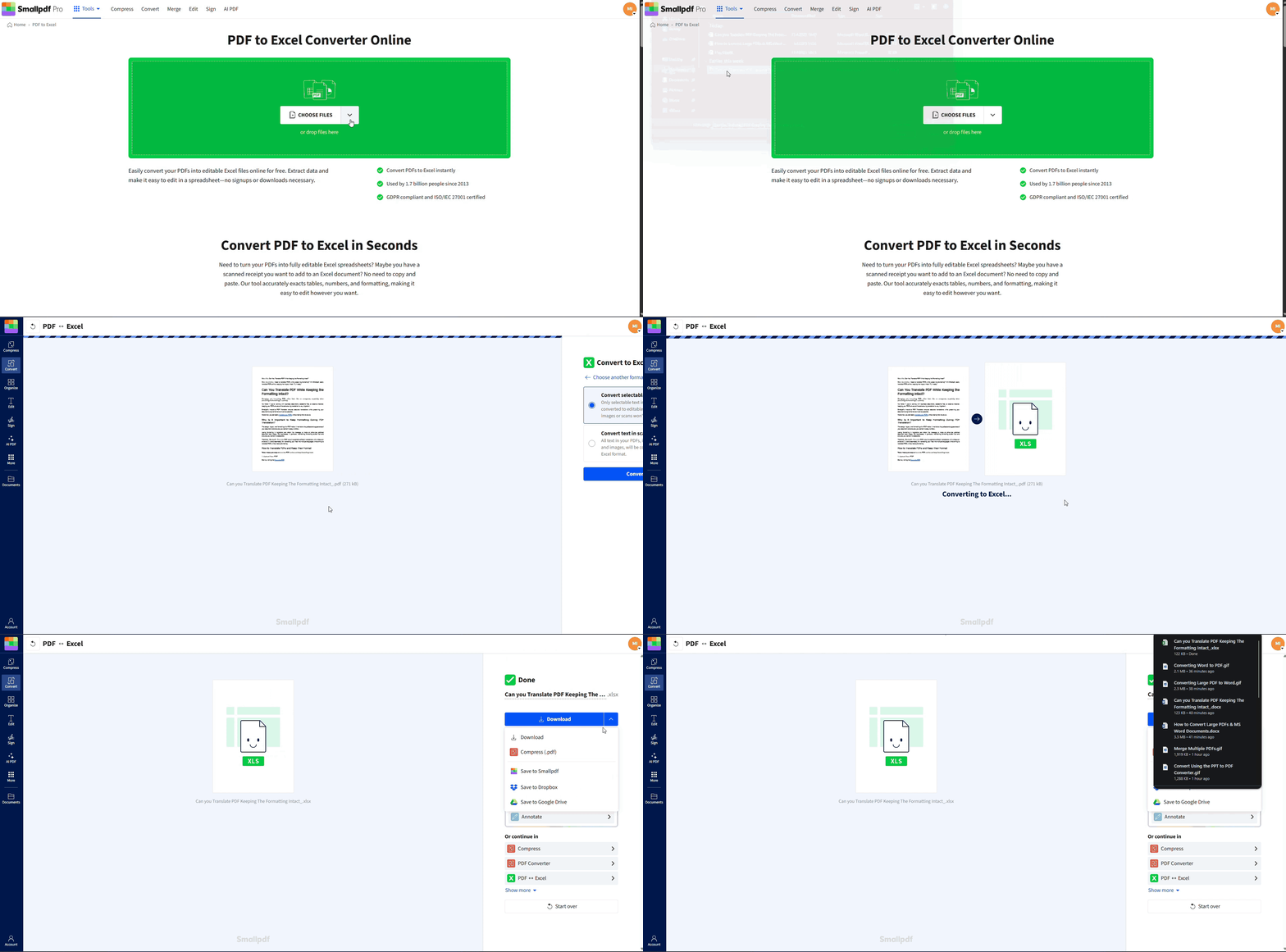
For large or wide tables, the most important settings are print area, page orientation, scaling, and column width, since these control whether your table fits cleanly in the final PDF.
Why Convert Excel to PDF (and When it Makes Sense)
Converting Excel to PDF preserves your spreadsheet’s formatting, protects formulas from editing, and ensures anyone can view your data without Excel.
Turning an Excel file into a PDF offers several benefits:
Professional Presentation: PDFs maintain a clean, polished format across all devices.
Secure Sharing: PDFs prevent accidental edits, ensuring your data remains untouched.
Ease of Printing: PDF files format perfectly for printing, even with large tables.
Universal Access: Anyone can open PDFs without needing Excel or other spreadsheet software.
You may want to keep your workbook in Excel for editing, but share a PDF copy when you send it to clients, teammates, or teachers.
Now, let’s show you how simple this process can be with Smallpdf.
How to Convert a Large Excel Table to PDF Online
Our Excel to PDF converter helps turn large tables and multi-sheet workbooks into clean, shareable PDFs without installing Excel.
Follow this step-by-step guide to convert a large Excel table to PDF
1. Open the Excel to PDF Converter
Head over to Excel to PDF.
The converter accepts both .xls and .xlsx files and runs on any device.
We secure all uploads with TLS encryption and follow ISO/IEC 27001 and GDPR standards, so your spreadsheets stay private.
2. Upload Your Excel File
You can upload your file in a few ways:
Click “Choose Files” and pick your Excel workbook.
Drag and drop the file into the upload area.
Import directly from Google Drive, Dropbox, or OneDrive.
3. Convert Your Excel to PDF
Once the upload is complete, the conversion starts automatically.
We optimize layout and keep your table structure intact, even for large sheets.
4. Download Your PDF
When the process finishes, click “Download” to save the PDF.
You can also export it back to cloud storage or move to other Smallpdf tools, such as Compress PDF or Merge PDF.
How to Export a Large Excel Table to PDF Without Cutting It Off
Before exporting a large or wide table, check your print area, page orientation, and scaling settings so your columns don’t get cut off in the PDF.
If you prefer to convert directly inside Excel, there are two main methods. These work on both Windows and Mac.
Method 1: “Save As” PDF
Open your Excel workbook.
Go to “File” > “Save As.”
Choose a folder location.
In the file type dropdown, select “PDF.”
If your table is wide, check the page setup or print preview before saving.
Click “Save.”
Method 2: “Export” or “Create PDF/XPS”
Click “File.”
Choose “Export” (or “Share” on some Mac versions).
Select “Create PDF/XPS Document.”
Adjust options such as “Optimize for Standard” or “Minimum size.”
Use scaling options like “Fit All Columns on One Page” if your table is too wide.
Click “Publish.”
This method gives you more control over print options and quality before you create the PDF.
Smallpdf vs Excel’s Built-in Export
Both approaches work, but they serve different needs:
Excel export
Good for quick one-off conversions
Depends on your local Excel settings and page layout
Smallpdf Excel to PDF
Works in any browser and on mobile
Handles large files and full workbooks
Adds security, automatic optimization, and easy access to other PDF tools
If you often share spreadsheets as PDFs, using Smallpdf makes it easier to manage all your files in one place
How to Fit a Large Excel Table on a PDF Page
Large Excel tables can get cut off, shrink too much, or split awkwardly across pages. Before or after converting, use these quick fixes to keep your table readable in PDF format.
1. Columns or rows are cut off
In Excel, select your data range.
Go to “Page Layout” > “Print Area” > “Set Print Area.”
Check “File” > “Print” to preview before converting.
This ensures only the correct area exports to PDF.
2. The table does not fit on one page
Open “Page Layout.”
Click the dialog launcher in the Page Setup group.
Use “Fit to 1 page wide by 1 tall”, or
Adjust the scaling percentage until your table fits.
You can also choose to fit width only and let the height span multiple pages for better readability.
3. Gridlines are missing in the PDF
If you want gridlines to show:
In Excel, go to “Page Layout.”
Under “Sheet Options,” check “Print” under Gridlines.
Export or print to PDF again.
4. The file is too large after conversion
Large workbooks can create big PDFs.
Try this:
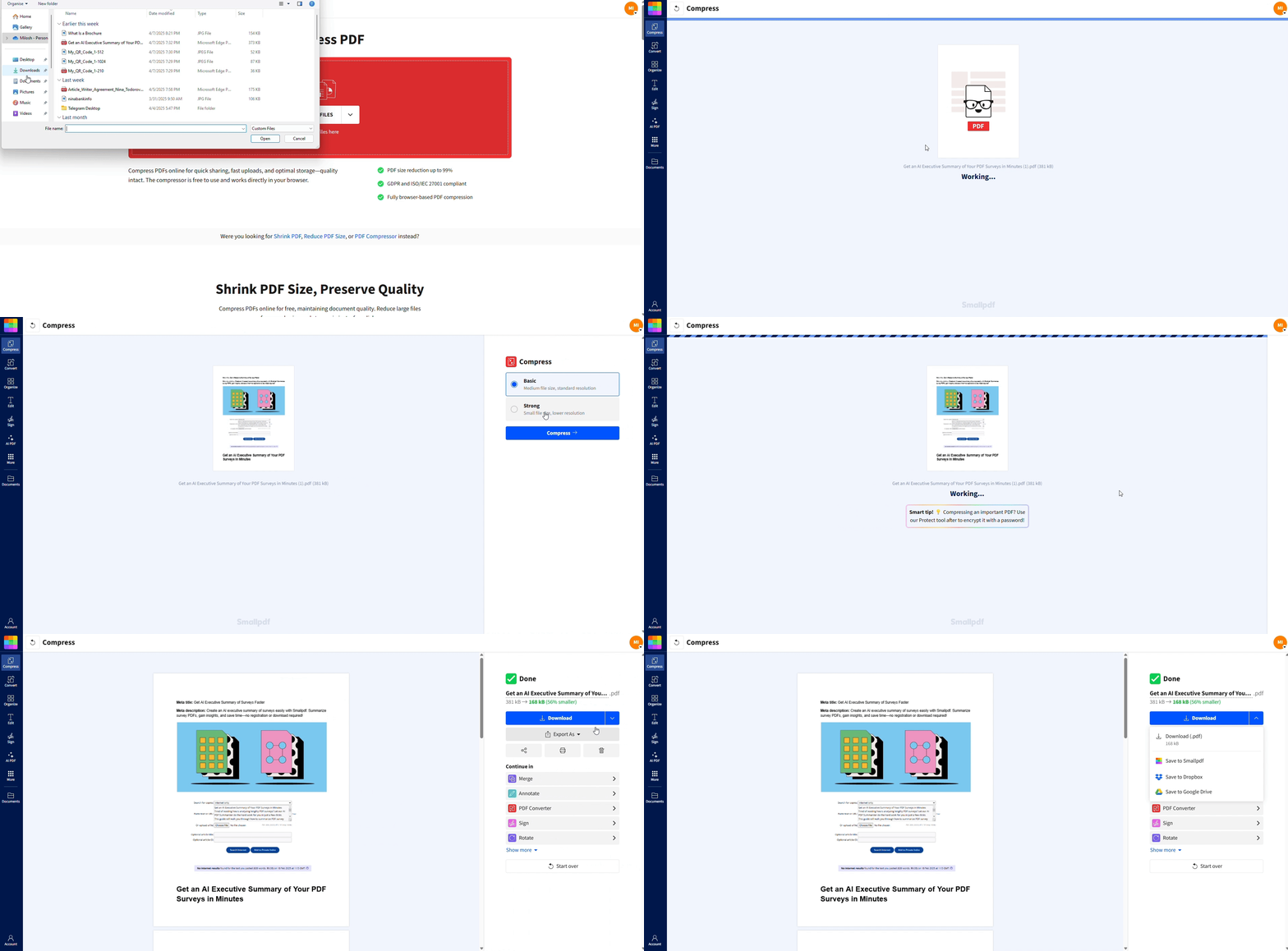
Use Compress PDF after conversion to reduce size.
Remove unused sheets, hidden columns, or extra images from the workbook.
Check for embedded objects that are not needed.
5. Not all sheets appear in the PDF
By default, Excel may only export the active sheet.
Go to “File” > “Print.”
Choose “Entire Workbook” in the print settings.
Then export to PDF, or upload the workbook to Smallpdf, which includes all sheets by default.
Is it Safe to Convert Excel to PDF Online?
Yes, Smallpdf uses TLS encryption to protect your files during upload and conversion. Files are automatically deleted from our servers after one hour, ensuring maximum privacy.
We’re GDPR compliant and ISO/IEC 27001 certified, meeting global security standards. You can confidently process even sensitive files, knowing your information is in good hands.
Related Smallpdf Tools for Excel and PDF
Once you convert your Excel file to PDF, these tools can help:
Compress PDF - Shrink large reports for email or upload.
Merge PDF - Combine several converted sheets or reports.
Edit PDF - Add text, highlights, or comments to your tables.
PDF to Excel - Turn a PDF back into an editable spreadsheet.
Word to PDF - Convert related documents into PDFs for a consistent bundle.
Turn Your Excel Tables Into Professional PDFs With Ease
Converting a large Excel table to PDF does not have to be complicated. With our Excel to PDF converter, you can upload, convert, and download in just a few steps, while keeping your formatting and layout under control.
Whether you are preparing a client report, a grade sheet, or a financial summary, we help you get from Excel to PDF without stress.
FAQs
How do I fit a large Excel table into one PDF page?
Use Excel’s Page Layout settings before converting. Set the print area, switch to landscape orientation, and choose “Fit to 1 page wide” so your columns stay visible in the PDFHow to convert Excel tables to PDF without losing formatting?
Smallpdf automatically preserves your table’s structure, design, and content during conversion. It ensures columns, rows, and styles remain intact.Can I convert multiple Excel sheets to one PDF?
Yes. When you upload a workbook with several sheets, we include them in a single PDF by default. You can also control sheet export from Excel’s print settings if you prefer.How do I convert Excel to PDF on Mac?
You can use our online converter from any Mac browser or the built-in options in Excel: “File” > “Save As” > “PDF” or “File” > “Export” > “Create PDF/XPS.”Will my formulas show in the PDF?
No, PDFs display the calculated results of your formulas, not the formulas themselves. This protects your calculations while showing the final values.Can I convert password-protected Excel files?
You’ll need to remove the password protection in Excel first, then upload the file to Smallpdf for conversion.What’s the maximum file size for Excel to PDF conversion?
We can handle Excel files up to several hundred megabytes, including large, data-heavy workbooks. If the PDF is still too large, use Compress PDF afterward.Can I convert Excel to PDF on iPhone or Android?
Absolutely! Smallpdf works perfectly on mobile browsers, or you can download the Smallpdf Mobile App for easier access.Why is my Excel file cutting off when converting to PDF?
This usually happens due to print area or scaling settings. Set the correct print area, use “Fit to 1 page wide” or adjust scaling, then convert again or upload to Smallpdf for a more balanced layout.Prepare and convert Excel spreadsheets to PDF with Smallpdf Pro