- CompressConvertAI PDF
- Organize
- View & Edit
- Convert from PDF
- Convert to PDF
- SignMoreScan
How To Copy Table From PDF to Excel?
Copy a table from PDF to Excel in seconds with our file converter (or manual methods when needed), while keeping your data clean. It’s fast and free.
Copying tables from a PDF into Excel can feel frustrating when formatting breaks or numbers scatter into the wrong columns. With the right approach, you can move data across quickly and still keep it usable for sorting, formulas, and analysis.
Below you’ll find a quick summary of the process, our recommended automated method, manual options for more control, pro tips, and a detailed FAQ with common fixes.
Quick Steps: How to Copy a Table from PDF to Excel
Manual option:
Open the PDF in a reader.
Select the table with your cursor.
Copy and paste into Excel.
Use “Text to Columns,” alignment, and formatting tools to tidy up.
Convert PDF to Excel in Seconds (Recommended Method)
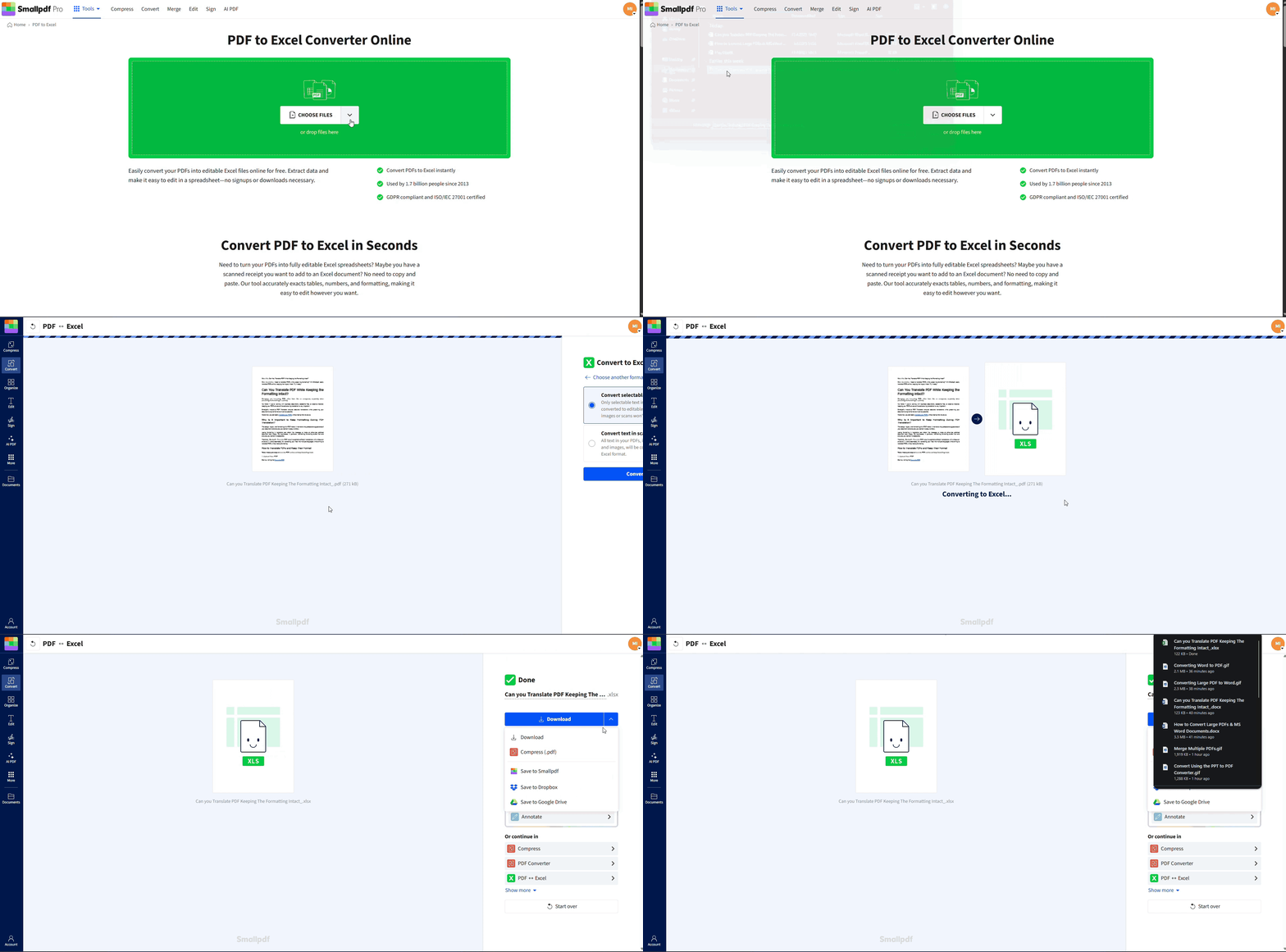
Our PDF to Excel converter is the fastest way to copy tables from PDF to Excel without manually rebuilding them.
1. Upload Your PDF
Go to our PDF to Excel.
You can:
Drag and drop your PDF into the upload area, or
Click “Choose File” and select it from your device, or
Import from Google Drive, Dropbox, or OneDrive.
We support both native PDFs and scanned documents.
If your file is too large, we have a solution for it as well, just upload to our Compress PDF tool, and continue converting your shrunk file.
2. Enable OCR for Scanned PDFs (Pro)
If your PDF is a scan or image-based:
Enable “OCR (Optical Character Recognition).”
OCR detects text in images, reads your table, and converts it into real cells.
This works well for scanned invoices, statements, and printed reports.
3. Convert and Download
Once processing finishes, click “Download” to get your XLSX file. You can open it in:
Microsoft Excel
Google Sheets
LibreOffice Calc
Most modern spreadsheet apps
From here, you can filter, sort, build formulas, or merge the data into an existing workbook.
Manual Methods to Copy a Table from PDF to Excel
Sometimes you may want a manual approach for a small table or quick copy.
Method 1: Copy and Paste from a Selectable PDF
This works best when the PDF is not scanned, and the text is selectable.
Open your PDF in a reader such as Smallpdf PDF Reader or your browser.
Use the “text selection tool” to highlight the table.
Right-click and select “Copy.”
Open Excel and select the cell where you want the table to start.
Paste the content (Ctrl+V or Command+V).
If the data lands in one column, try:
“Data” > “Text to Columns” in Excel
Use “Delimited,” then choose “Tabs” or “Spaces” as needed
You may need to adjust column widths and header formatting, but this method is fine for smaller tables.
Method 2: Export Table via PDF Viewer Tools
Some desktop PDF tools let you export a PDF page or table directly to Excel or CSV.
In your PDF viewer, look for “Export” or “Save As” options.
Choose “Spreadsheet” or “Excel” if available.
Save and open the exported file in Excel.
Results vary depending on the viewer. If the export is messy or incomplete, switching to the Smallpdf PDF to Excel converter usually improves accuracy.
Why Use Smallpdf for PDF Tables Instead of Manual Copying
Manual copying is fine for small tables, but it breaks down with:
Long statements
Multi-page reports
Complex column layouts
Scanned or image-based PDFs
Smallpdf helps you:
Keep the table layout and structure as close as possible to the original
Handle big files without manually copying each section
Process multiple PDFs at once with “batch conversion (Pro)”
Convert scanned PDFs using “OCR” instead of retyping
On top of that, your files are processed with:
TLS encryption during transfer
Automatic deletion after one hour of processing
ISO 27001 and GDPR compliance standards
You get the speed of an online platform with a strong security baseline.
Pro Tips for Cleaner Table Conversion
To get the best results when copying tables from PDF to Excel, keep these in mind:
Use clear tables: PDFs with visible row and column structure convert more cleanly than loosely formatted text.
Compress large PDFs first: Use Compress PDF to shrink very large files for faster upload and processing.
Split long multi-page PDFs: With Split PDF, you can extract specific pages that contain the tables you need.
Check your Excel output: After conversion, scan for misaligned headers, merged cells, or formatting quirks, and clean them up once.
Standardize formatting after import: Apply a consistent table style, adjust column widths, and format numbers as currency, dates, or percentages as needed.
Real-World Scenarios: When This Workflow Helps
Here are a few ways users rely on this process:
Accounting and finance: Turn PDF statements into Excel for reconciliation, cash flow tracking, or forecasting.
Operations and inventory: Extract product lists, stock counts, or supplier price sheets into spreadsheets.
Research and surveys: Move tabular data from PDF reports into Excel for sorting, filtering, and charting.
Project reporting: Copy status tables or resource lists from PDF reports into Excel dashboards.
Instead of retyping, you convert once, clean the layout, and reuse the data across multiple reports.
Convert PDF to Excel for Free Today
Unlock unlimited conversions, OCR for scanned documents, and batch processing with Smallpdf Pro.
Smallpdf tools are trusted by millions of users globally, making document management simple, secure, and efficient.
PDF to Excel FAQs
How do I convert a PDF table to Excel without losing formatting?
Smallpdf preserves formatting during the conversion process to ensure your data structure remains intact. Tables, rows, and columns from the PDF are replicated in your Excel sheet with original spacing and alignment.Can I convert scanned PDFs to Excel with OCR?
Yes! Our OCR (Optical Character Recognition) feature detects text and tables in scanned PDFs, ensuring accurate Excel conversions. This Pro feature works with invoices, receipts, and other scanned documents.Why does my copied table end up in one column in Excel?
This happens when your data is pasted as plain text. Use “Data” > “Text to Columns” and choose appropriate delimiters such as “Tab” or “Space,” then adjust column widths.How do I fix numbers that import as text?
In Excel, select the column, go to “Data” > “Text to Columns,” or use “Value” functions and number formatting. You can also use the warning icon in Excel to convert text to numbers.Is Smallpdf PDF to Excel converter free, and are there limits?
Our basic PDF to Excel converter is free, but there is a daily limit on the number of conversions you can perform. Smallpdf Pro offers unlimited conversions, OCR capabilities, and batch processing for power users.Is it safe to use an online PDF to Excel converter?
Absolutely. Smallpdf maintains ISO 27001 certification and GDPR compliance, with all files encrypted during processing and automatically deleted within one hour for your security.How do I open and edit my converted Excel file?
Your converted file downloads as an XLSX format, compatible with Microsoft Excel, Google Sheets, LibreOffice Calc, and other spreadsheet applications. Simply double-click to open and start editing your data.Convert PDF tables into Excel spreadsheets using Smallpdf Pro