- CompressConvertAI PDF
- Organize
- View & Edit
- Convert from PDF
- Convert to PDF
- SignMoreScan
How To Insert PDF Into Word
Learn multiple ways to insert PDFs into Word documents—as objects, images, or editable text—with step-by-step instructions for every scenario.
Yes, Word lets you place a PDF inside your document, but the result depends on the method you choose.
Inserting a PDF as an object or image gives you a static preview, while converting the file first lets you bring the content into Word as fully editable text. The steps below outline both options so you can pick the one that suits your task.
The Smallpdf team doesn’t only love PDF, we also love to make working with PDF easy. That means not only providing you with a suite of tools but also sharing tips and tricks for getting the most out of your PDF files.
In this article, you’ll learn how to add a PDF to a Word document in seconds, both as an image and in an editable format.
Quick Summary on How To Insert or Import a PDF Into Word
Here’s a few fast options help you get PDF content into Word, depending on whether you want a simple preview, an image, or editable text.
Insert as an Object (shows the first page)
Open your Word document.
Go to “Insert”, then choose “Object”, and select “Create from File.”
Select your PDF and choose “Insert.”
Insert as an Image (more control over layout)
Convert your PDF to JPG using Smallpdf’s PDF to JPG tool.
In Word, open “Insert,” select “Pictures,” then choose “This Device.”
Choose the converted image file and insert it.
Import as Editable Text (best for editing)
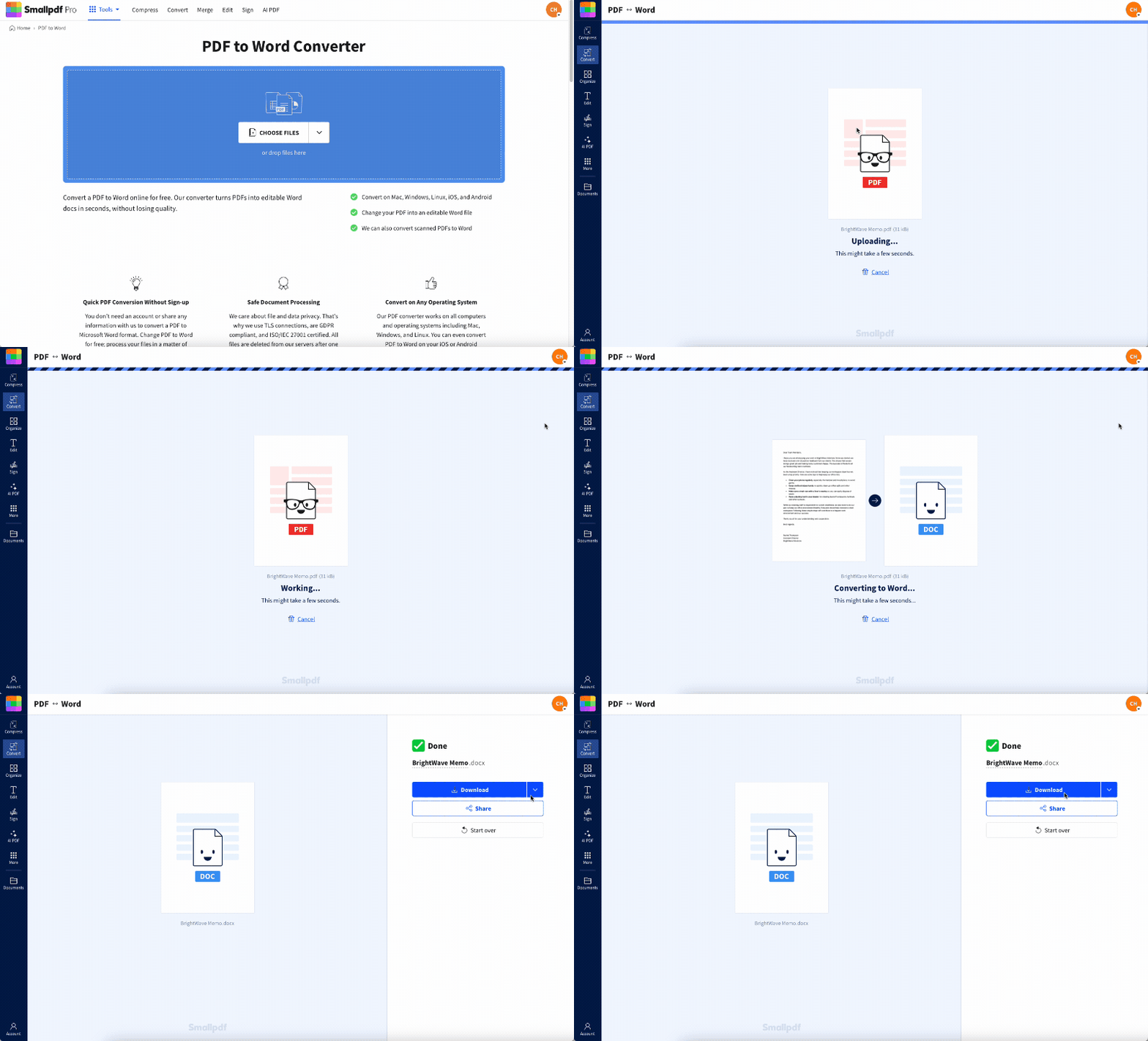
Upload your PDF to Smallpdf’s PDF to Word converter.
Download the converted Word file.
Open it in Word to edit or combine with your document.
For Multi-page PDFs
You've got a couple of option witb Multi-page PDFs:
Split the PDF with Split PDF and insert each page separately
Convert the entire file to Word to work with all pages at once.
Comparison of PDF Insertion and Import Methods
| Method | What It Does | Best For | Limitations |
|---|---|---|---|
| Insert as Object | Embeds the first page of the PDF into your Word document. | Showing a preview or attaching a PDF visually. | Only the first page appears. Content is not editable. |
| Insert as Image | Converts each PDF page to an image, which you then place in Word. | Full control over layout, resizing, and positioning. | Text cannot be edited. Multi-page PDFs require multiple images. |
| Convert PDF to Word | Turns the entire PDF into an editable .docx file. | Editing text, copying sections, or merging content with other documents. | Complex layouts or fonts may shift during conversion. |
| Split PDF + Insert Pages | Separates the PDF into individual pages for selective placement. | Inserting specific pages into Word while keeping quality. | Not suitable for editing. More steps for long PDFs. |
| Link to PDF | Inserts a link or icon that opens the original PDF. | Keeping Word file sizes small and ensuring the PDF stays up-to-date. | Link breaks if the PDF is moved or renamed. |
How to Insert a PDF into Word as an Object
The most common way to insert a PDF into Word is by using the Object feature. This method embeds the PDF directly into your document, showing the first page as a preview.
Open your Word document and place your cursor where you want the PDF to appear.
Go to the “Insert” tab on the ribbon.
Click “Object,” then select “Create from File.”
Click “Browse” to find and select your PDF file.
Click “Insert” to embed the PDF into your document.
Once inserted, you can double-click the embedded PDF to open it in your default PDF reader. Keep in mind that this method only displays the first page of your PDF in the Word document preview.
Insert a PDF into Word as an Image
If you want more control over how your PDF appears in Word, converting it to an image first gives you better formatting options. Start by using our PDF to JPG converter to turn your PDF into a high-quality image.
How to Insert a PDF into Word as an Image
This method gives you full control over resizing, cropping, and positioning your PDF content within Word. It’s perfect when you need the PDF to blend seamlessly with your document’s layout.
Convert PDF to Editable Word Content
When you need to edit the actual text and content from your PDF, converting it to an editable Word format is your best option. Word 2013 and newer versions can open PDFs directly, but for better results, use our specialized converter.
Open our PDF to Word converter.
2. Upload your PDF file to the tool.
3. Choose “Convert selectable text only” for the best formatting preservation.
4. Wait for Smallpdf to process your file.
5. Download the converted Word document.
Our converter maintains better formatting and layout compared to Word’s built-in PDF reflow feature. You’ll get editable text that you can modify, copy, or merge with other Word content.
Insert a Multi-Page PDF into Word
When inserting a PDF as an object or image, Word only shows the first page. For multi-page PDFs, you have several options depending on your needs.
Split the PDF first: Use our Split PDF tool to separate pages, then insert each page individually.
Convert to images: Our PDF to JPG converter can create separate images for each page that you can insert one by one.
Convert to Word: Use our PDF to Word converter to get all pages as editable content in a single Word document.
The conversion method works best when you need all the content accessible and editable within Word.
Link a PDF to Your Word Document
Instead of embedding a PDF directly, you can link to it. This keeps your Word file smaller and ensures the PDF always shows the most current version.
In Word, go to “Insert” and choose “Object.”
Select “Create from File.”
Click “Browse” and select your PDF.
Check the “Link to file” option before clicking “Insert.”
Linked PDFs appear as icons in your document. Double-clicking opens the original PDF file. Remember that moving or renaming the original PDF file will break the link.
Copy and Paste PDF Content into Word
For simple text extraction, you can copy content directly from a PDF and paste it into Word.
Open your PDF in any PDF reader.
Select the text you want to copy.
Press Ctrl+C (or Cmd+C on Mac) to copy.
In your Word document, press Ctrl+V (or Cmd+V on Mac) to paste.
This method works well for text-only content but may lose formatting. For complex layouts or when text isn’t selectable, use our PDF to Word converter instead.
Tips for Working With PDFs in Word
Here are some helpful tips to avoid common issues when inserting PDFs into Word documents.
Word Online Limitations
Word for the web doesn’t support inserting PDF objects directly. You’ll need to use the desktop version of Word or convert your PDF to an image first using our online tools.
Troubleshooting Icon Display Issues
If your PDF shows as an icon instead of a preview, try unchecking “Display as icon” in the Object dialog box. You can also right-click the object and select “Convert” to change how it appears.
Protecting Sensitive PDFs Before Sharing
Before inserting confidential PDFs into shared Word documents, consider using our Protect PDF tool to add password protection or redact sensitive information first.
Troubleshooting Common Issues When Inserting or Importing PDFs Into Word
If your PDF doesn’t appear the way you expect, these quick checks usually solve the issue.
The PDF Won’t Insert at All
If Word refuses to embed your PDF, the file may be too large or saved with restrictions. Try opening the PDF in a reader and re-saving it. If the issue continues, convert the PDF to an image with PDF to JPG or import it as editable text with PDF to Word instead.
Only Part of the PDF Appears
When you insert a PDF as an object, Word displays only the first page. To include the full document, split the PDF into separate pages using Split PDF, then insert the pages you need, or convert the entire file to Word.
Formatting Looks Distorted After Converting
Some PDFs contain complex layouts, layers, or non-standard fonts that don’t carry over cleanly. Converting the file with PDF to Word often gives the best result. If text still shifts, try exporting the original PDF again or flattening it in your PDF reader before converting.
Text Isn’t Selectable After Inserting
PDFs inserted as objects or images cannot provide selectable or editable text. If you need to work with the text, convert the PDF using PDF to Word and edit the converted file instead.
Inserted Images Look Blurry
This usually means the conversion created a low-resolution image. Re-convert the PDF using the highest quality option available in PDF to JPG, then insert the new image into Word.
Start Your Free Trial to Access All Smallpdf Tools
Get unlimited access to our complete suite of PDF tools, including advanced conversion features and batch processing. Perfect for handling multiple PDFs efficiently.
Inserting a PDF Into Word FAQs
Can I insert an entire PDF into Word?
Yes, but the method depends on your needs. For viewing purposes, use the Object insertion method, though it only shows the first page. For full access to all pages as editable content, use our PDF to Word converter.How do I insert a PDF into Word without it showing as an icon?
When using “Insert,” “Object,” and “Create from File,” make sure the “Display as icon” checkbox is unchecked. If it still appears as an icon, your PDF might not have a preview available, or you may need to convert it to an image format first.Can I edit a PDF after inserting it into Word?
PDFs inserted as objects or images cannot be edited directly in Word. To edit the content, you’ll need to convert the PDF to Word format first using our converter, which creates editable text you can modify.Is it free to insert a PDF into Word?
Yes, Word’s built-in insertion features are free to use. Our PDF conversion tools offer free usage with some limitations, and Smallpdf Pro provides unlimited access to all features.What’s the difference between embedding and linking a PDF?
Embedding stores the PDF data within your Word document, making the file larger but self-contained. Linking creates a reference to the original PDF file, keeping your Word document smaller but requiring the original PDF to remain in the same location.Why can’t I insert a PDF into Word Online?
Word for the web has limited object insertion capabilities compared to the desktop version. You’ll need to use Word desktop or convert your PDF to an image format that can be inserted through the Pictures option in Word Online.Add PDF content into Word easily using Pro features
Related Articles